

I wrote Cruise Organizer because I found it difficult to keep track of all the details around my cruises. While the cruise line web page or app will have many of the details, some such as flights and hotels will not be there.
Cruise Organizer 1.0.2 is now available for Android and IOS.
Features
- Cruise information such as reservation, cruise line, start and end dates, cabin number and cost.
- Events that are associated with this cruise such as excursions, flights, hotels, car rentals and many more.
- The next or current cruise is at the top of the list followed by any others in order of date. Past cruises are moved to the bottom of the list.
- Tap on a cruise in the list of cruises to bring up the cruise detail page. This will display the cruise information at the top and all events that have been added to it.
- Events do not have to be in the timeframe of the cruise. Items like flights and hotels may be before or after the cruise.
- Notes may be added to each cruise or event.
- If costs have been entered, the total will appear at the bottom of the cruise detail.
- Loyalty Programs
- Statistics has an overvies of your cruising activity, countries visitied, locations visited, and ships sailed.
Home Page
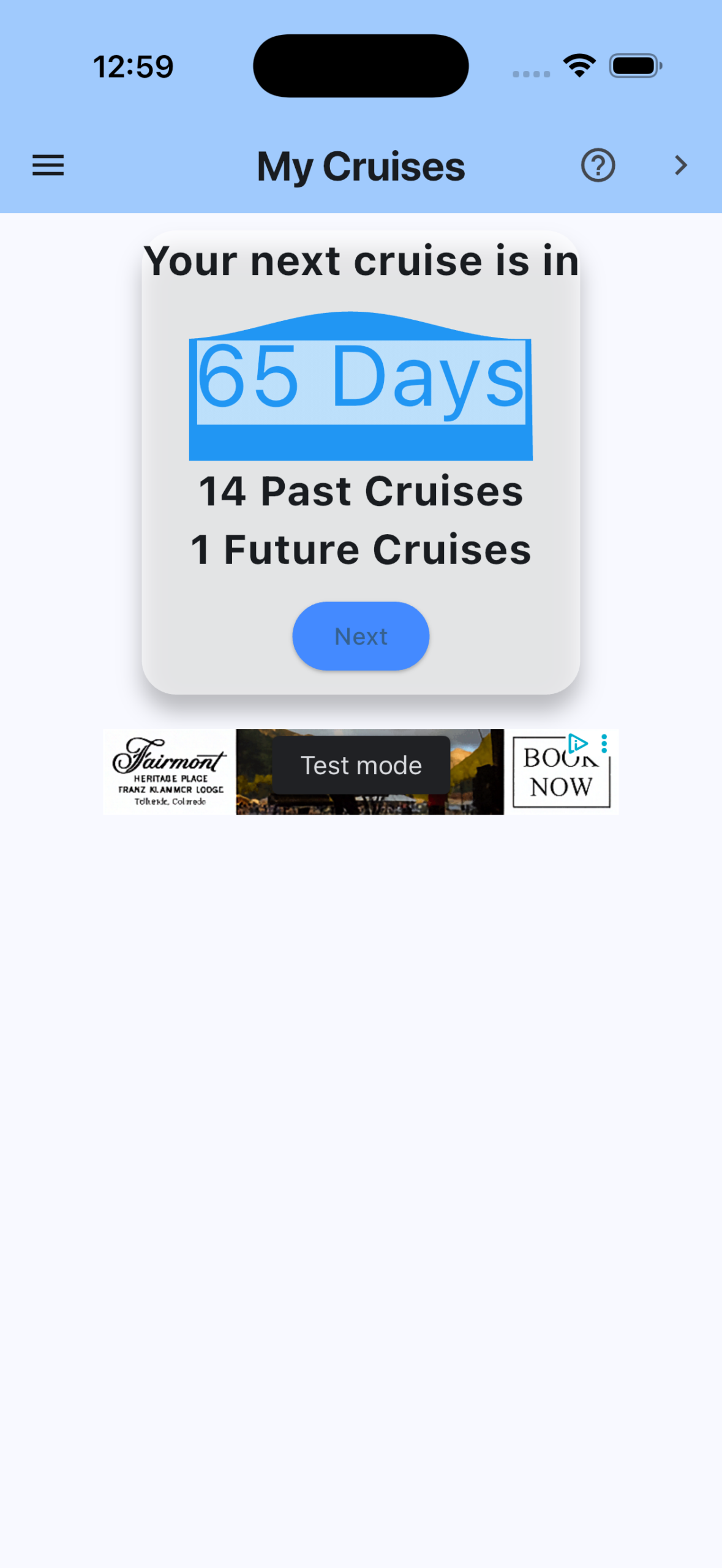
- On starting the app, press the plus button to add your first cruise. The main field you must have is the reservation number. This may not be changed once saved but you can copy the cruise using the “Copy” tab.
- After you have a cruise in your list, tap on it to bring up the cruise detail. Tapping the cruise brings up a page that allows you to edit or delete the cruise.
- Tapping the plus button adds an event. There are many event types to choose from. While all other fields are optional, you should at least enter a name and set the dates and times.
Cruise List
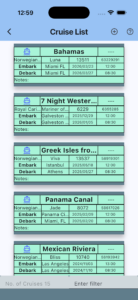
- Cruise List displays all your cruises. Future cruises are placed at the top with the days until sailing displayed.
- Click a cruise card to get detial list including events.
- Click the plus button to add a new cruise.
- Filter the list using the search box in the lower right corner.
Cruise Detail
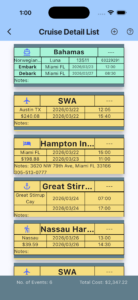
- The cruise card appears at the top of the list. You can click on it to change information for the cruise.
- Events follow the cruise card sorted by date. Events can have many different types such as excursions, ports, flights, etc.
- Click the circled plus icon in the header to add an event.
- Click on any event to edit it or view details.
- If costs have been included in the cruise or any event, the total will appear at the lower bottom.
- Filter the events using the search box at the bottom right.
Statistics
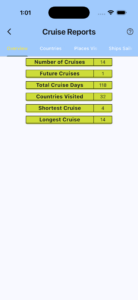
- The statistics view has four screens that display an overview, places visited, countries visited and ships sailed.
All Events
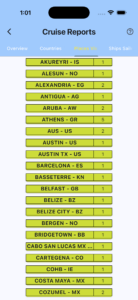
- All events display all events contained in all cruises.
- Tap on any event card to edit or view it.
- This is convenient for finding misspelled places by using the search button in the lower right corner.
Loyalty Programs
The Loyalty tab allows you to enter information about various cruise line loyalty programs. You can store your member number, attainment levels and web address of the cruise line. If you linked your cruise with a loyalty program of type “Cruise Line”, the oranizer will automatically update the number of cruises and days cruised.
Database Activities
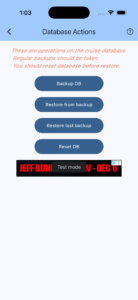
- Database activities allows for backing up and restoring your data. No information is stored anywhere but your device.
- Use the “Backup DB” to create a backup. It will have a name like “CO20260501121135.txt” where the date and time are appended to the letters “CO” and has an extension of “.txt”. Depending on device it may be located in diffent places.
- Two options for restoring are provided. “Restore Backup” will show a file picker dialog to select a file. “Restore Last Backup” will restore your last backup.
- “Reset DB” clears the database. You should do this before restoring a backup.