
RV Check List Pro has enterred beta and will be published third quarter of 2026.
RV Checklist Pro is written by a person with decades of RV experience. A checklist, rather than a to-do list, is a repeatable, reusable set of tasks to preform for a particular activity. For example, a pilot has a checklist to perform before taking off.
A customizable, reusable checklist for any RV aficionado.
Getting started:
- On first start, there will be no tasks or lists defined. You can load the started pack in the DB Activities screen
- You can delete any tasks or lists you do not want.
- Check lists are composed of a number of tasks.
- Tasks are reusable among lists. Tasks can be assigned as sub-tasks to another task. They then act as a group.
- A list can be reused by clicking on the ‘Clear Checks’ option.
- Lists can be copied, renamed, rearranged or deleted. They can also be exported as a PDF file for printing.
- Lists can be exported as a file that can be sent to someone else to import into their app.
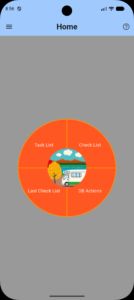
More options are available at the left top in a drop down menu.
The home screen has a circular menu that allows for navigation to primary functions quickly.
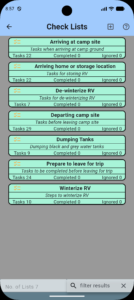
The Check Lists screen shows the lists that you have in the app. Selecting one of the tiles will take you to the Detail screen where you can mark tasks as completed or ignored.
Use the plus icon at the top to add a new list.
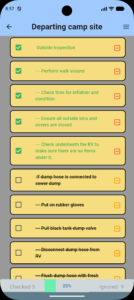
This is the primary screen for using check lists. Here you can mark tasks as done or mark them as ignored (sometimes a task does not apply.)
Tasks that are indented are a group of the task above that is not indented. Once all tasks under the task above are completed, the main task will appear with a check mark. The same applies to ignored tasks.
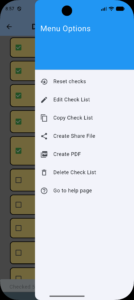
Clicking on the drop down icon in the top right corner brings up the options menu.
- Reset unchecks all tasks so you can reuse the list.
- Edit takes you to the list editing screen
- Copy makes a copy of this check list.
- Create a sharable file that you can send to someone else to intall into their app.
- Create a PDF that you can use to print the check list.
- Delete this check list.
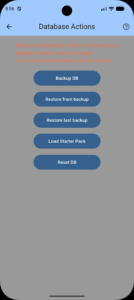
- Back up your data to the directory you chose in preferences
- Restore a file using a pop up file selection dialog.
- Restore the last backup created.
- Load the RV Checklist starter pack. Contains several lists and tasks.
- Reset DB will delete your database and recreate. You should perform this step before restoring backups.
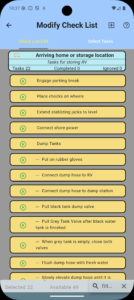
Modify Check List has two tabs. The left tab allows rearranging the tasks.
- Long press a card and drag it upward or downward to change the order.
- Long press a card and drag it left or right to indent (make it a sub-task) or unindent.
- Press the green X to the left to remove it from the list.
- Press the + button at the top to add a new task. It will be added to the end of the list.
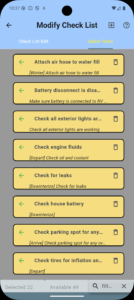
The right tab of the Modify Check List page allows for selecting tasks to add to your list.
- Press the green arrow to the left to add that task to your list.
- Press the trash icon on the left to delete the task. (This will remove it from all lists.)
- Tags can be placed in description field. They are encolosed in square brackets.
- In the bottom right you can filter tasks by entering a text value, such as a tag to more easily find the desired tasks.
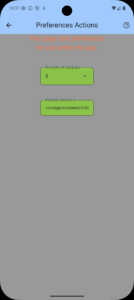
- Enter the number of backups to be retained. Each time a backup is created, the oldest backups in excess of this number will be deleted. (Default is 5.)
- You should select the destination for backups as this varies by phone model and make. The default is a location not easily accessed by file finders. A documents folder is a good choice.